
How to Lock Down a Hand-Me-Down iPhone for Your Child: A Step-by-Step Guide

By Pundarik Ranchhod, Kite Inclusive
Published: 6 Apr 2026 · 9 min read
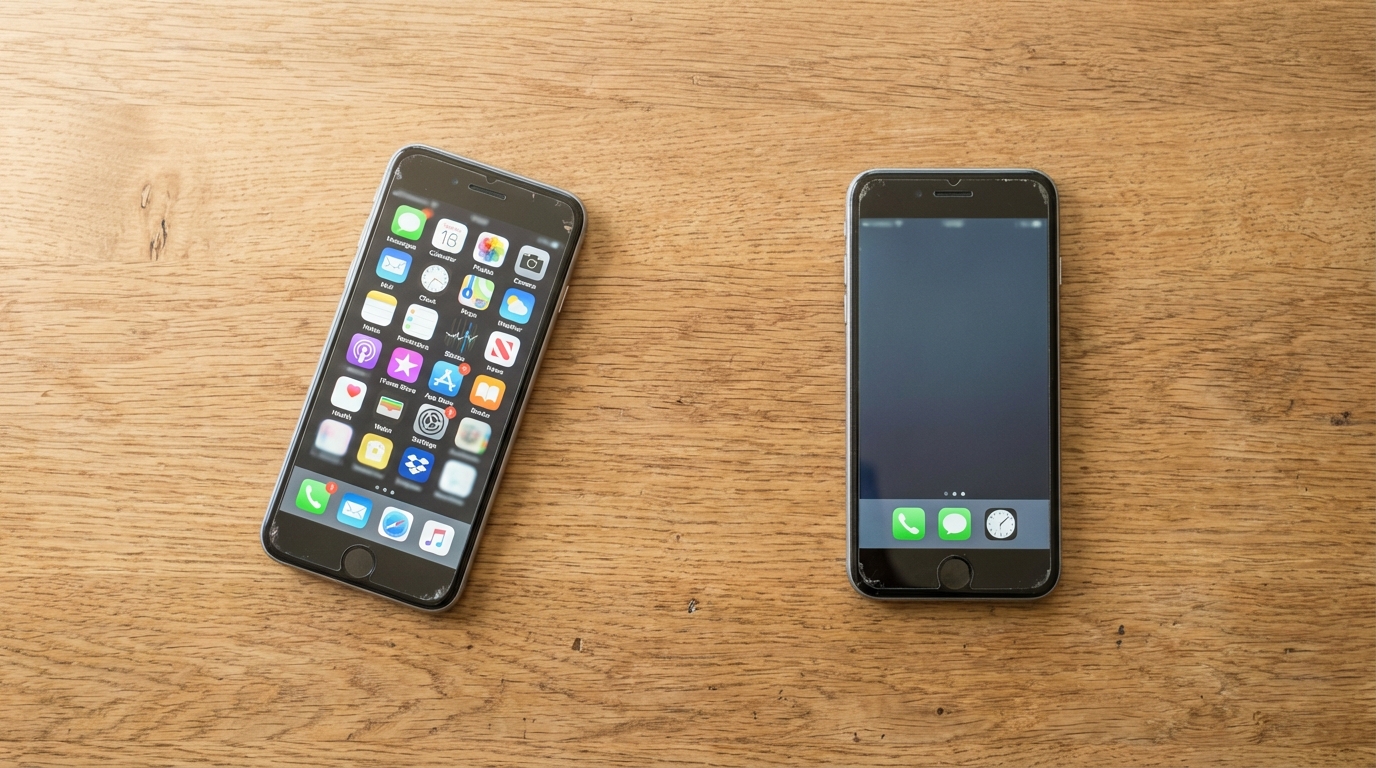
You are holding a scratched piece of glass and aluminium you dug out of a drawer. Your kid needs to be reachable, and this is the cheapest path forward. No new hardware. No monthly subscription. You just need to make the old device safe.
This guide walks you through every exact swipe and tap needed to lock down an iPhone using Apple's built-in software. The guide also covers the mechanical limitations of the restrictions, so you can decide if the result fits your needs.
Before you touch anything, check the prerequisites. The device needs to run iOS 16 or later, though these steps follow the menus in iOS 18. You need to wipe it entirely with a factory reset.
Finally, it must be signed into a child Apple ID managed through your own Family Sharing account. If you have not set up Family Sharing yet, that is your very first job.
Setting up Family Sharing and a child Apple ID
Grab your own phone first. Open Settings, tap your name at the top, and click Family Sharing. If you do not have a group set up, follow the prompts to create one. From there, tap the icon to add a member and choose to create an account for a child. Apple requires parental consent for under-13 accounts in the UK, which automatically applies a layer of age-appropriate baseline restrictions.
Once the child's account exists, pick up the wiped hand-me-down iPhone. Turn it on. When it asks for an Apple ID, type in the child's new credentials. Do not bypass this step. Do not type in your own email address.
Handing a child a device logged into your personal Apple ID is an error. It instantly hands them the keys to your credit cards, your private iMessages, your photo library, and your iCloud backup.
The hardware belongs to them now, so it must run on their specific, isolated account.
Screen Time setup: the core restrictions
Open Settings and tap Screen Time. This menu is your control panel.
Tap Downtime to define the hours when the screen goes dark and only phone calls and specifically allowed apps function. Set this to cover the school day and bedtime at an absolute minimum.
Next, open App Limits to restrict daily usage by category. These timers reset at midnight. The software sends a notification when time runs low, and your child will ask for one more minute every single afternoon.
Now tap Communication Limits. Most parents skip this screen, but it dictates exactly who your child can call, text, or FaceTime. You configure these rules twice: once for allowed screen hours, and once for Downtime. Set both strictly to Contacts Only.
Move down to Content & Privacy Restrictions and toggle it on. Go into Allowed Apps & Features and turn Safari off entirely. Next, navigate to Store, Web, Siri & Game Center Content (or iTunes & App Store Purchases depending on your exact version) and block their ability to install new apps.
Scroll down the main menu to restrict explicit content, lock their Apple ID so they cannot change the password, and freeze location sharing so the GPS tracker stays active.
Finally, tap Lock Screen Time Settings. Type a four-digit number that is completely different from the code used to unlock the phone screen. This four-digit code is the single point of failure for the entire system. If the child figures it out, they can strip away every restriction you just built, in thirty seconds.
Additional security steps
The built-in toggles are not quite enough. Before you hand the device over, delete apps manually. Hold your finger on YouTube, TikTok, news apps, and anything else containing an embedded web browser, and delete them. Since you already blocked the App Store, the child cannot reinstall them.
Next, go into Settings and find Siri & Search. Turn off suggestions and web results. Siri can return unsafe internet content even when Safari is disabled. Go to General, tap AirDrop, and turn receiving off completely. This prevents the device from receiving files via AirDrop from nearby devices.
Change the main device unlock code to a complex alphanumeric string. Set up Face ID or Touch ID using only the child's biometric data. You memorise or make a note the complex written passcode. The child never learns it. They unlock the hardware with their thumb or their face.
Finally, open the Find My app and verify the device is broadcasting its location under the child's account.
What this setup gives you
Step back and look at the object on the table. You now have a piece of hardware that makes calls and texts to a tight circle of approved contacts. It runs a small handful of permitted apps under strict daily time limits.
The child cannot browse the web, install fresh software, or access social media, and their physical location broadcasts directly to your phone.
This is a meaningfully restricted device. For many families, this exact configuration hits the target perfectly. The child carries a phone, the parent maintains constant visibility, and the financial cost is zero beyond the hardware already sitting in the house. This is a legitimate setup.
The real limitations
| Blocked | Still gets through |
|---|---|
| Safari browser | In-app browsers (embedded WebKit views) |
| App Store | iCloud on other devices (school iPad, friend's phone) |
| Social media apps | Passcode exposure (4-digit code, no biometric) |
| AirDrop receiving | Permission request fatigue (every expired limit pings you) |
| Siri web results | The form factor itself (still a smartphone in a pocket) |
After completing every step in this guide
Apple built the system around a four-digit numeric code. There is no biometric protection for these specific settings.
Children watch hands move across keyboards. Siblings trade secrets. A child who learns those four digits can open Settings and disable your carefully setup restrictions.
You mitigate this exposure by changing the code on the first Sunday of every month and physically shielding your screen when you type it, treating the sequence like a bank PIN rather than a casual household password.
“Deleting Safari does not wipe the internet from the device. Many approved applications contain embedded web browser views that open web links directly inside the app.”
Deleting Safari does not wipe the internet from the device. Many approved applications, including messaging platforms, educational tools, and basic games, contain embedded web browser views.
These open web links directly inside the app. You can go into Content & Privacy Restrictions, tap Store, Web, Siri & Game Center Content, and set Web Content to Limit Adult Websites, which does force those embedded browsers to filter adult material.
However, the iOS architecture prevents you from disabling embedded browsers entirely at a system level.
The restrictions are tied to the cloud. If your child logs into a school iPad or a friend's phone using their Apple ID, they can access restricted content or attempt to alter settings. Family Sharing applies across devices but cannot physically prevent login attempts elsewhere.
The software runs on daily friction. Every time an App Limit expires, the phone generates a permission request. Every time the child taps a greyed-out icon during Downtime, you get a ping.
You must type the passcode or approve the extension remotely every single time. You can absorb a lot of this daily impact by relying strictly on remote approvals from your own device, tapping a button from the kitchen rather than physically wrestling the child's phone away to enter the digits.
Look at the physical object itself. After every software restriction is applied, the device remains a smartphone. It slips into a pocket. It has a high-resolution screen. To the child, it looks and feels identical to the unrestricted objects carried by their peers, except theirs is broken.
That perception gap generates persistent friction regardless of how perfectly you configured the software.
When this setup works and when it doesn't
This system works well for children between eight and ten who have not yet reached secondary school. Their unsupervised time is limited, and their peer group is not yet relying on smartphones to organise their social lives.
The software restrictions hold tight because the child lacks the social motivation and the technical literacy required to break them.
The approach struggles when handed to an eleven-year-old entering year seven. The peer pressure to access messaging platforms and social media intensifies sharply at this age.
The child spends more time away from home with the device in their pocket, and their technical skills expand rapidly. At this stage, the restrictions stop being a quiet background default and turn into a daily negotiation. These age boundaries are approximate, and the exact shift depends entirely on the specific child.
The broader picture
A locked-down iPhone is one option on a much wider spectrum. Some families build this exact setup and find it entirely sufficient.
Other parents calculate the daily administrative overhead and decide the friction is not worth the effort. They move to different form factors entirely.
They buy a basic phone that requires zero software restriction because there is nothing to restrict. They use a GPS watch for early primary years, or they install a home-based phone to handle voice calls without handing over a portable screen.
There is a full comparison of every phone alternative available for UK children, including pricing, feature grids, and combination strategies, in the guide Every Phone Alternative for UK Children Compared.
The broader context for these decisions, the organisations, the government response, and the parent-led pacts, is covered in the guide, Smartphone Free Childhood UK: The Parent Movement to Delay Phones.
Quick reference checklist
- Family Sharing: Create group and a child Apple ID
- Device Login: Sign in with child Apple ID only
- Screen Time > Downtime: Set to cover school hours and bedtime
- Screen Time > App Limits: Set daily limits per category
- Screen Time > Communication Limits: Restrict to Contacts Only (for allowed hours and Downtime)
- Screen Time > Content & Privacy > Allowed Apps & Features: Turn Safari off
- Screen Time > Content & Privacy > Store, Web, Siri & Game Center Content: Don't Allow installing apps
- Screen Time > Content & Privacy: Restrict explicit content
- Screen Time > Content & Privacy: Don't Allow passcode or account changes
- Screen Time > Content & Privacy: Don't Allow location sharing changes
- Screen Time: Set 4-digit Screen Time passcode
- Home Screen: Manually delete apps with embedded browsers
- Siri & Search: Turn off suggestions and web results
- Screen Time > Content & Privacy > Store, Web, Siri & Game Center Content > Web Content: Limit Adult Websites
- General > AirDrop: Turn receiving off
- Face ID & Passcode: Set complex alphanumeric unlock code
- Face ID & Passcode: Register child biometric data only
- Find My: Verify location broadcasting is active
Looking for a screen-free alternative?
Kite Phone lets children call friends and family from home with zero screen time, no parental controls to configure, and no daily permission requests.
Get Your Kite PhoneFrequently Asked Questions
Related Guides
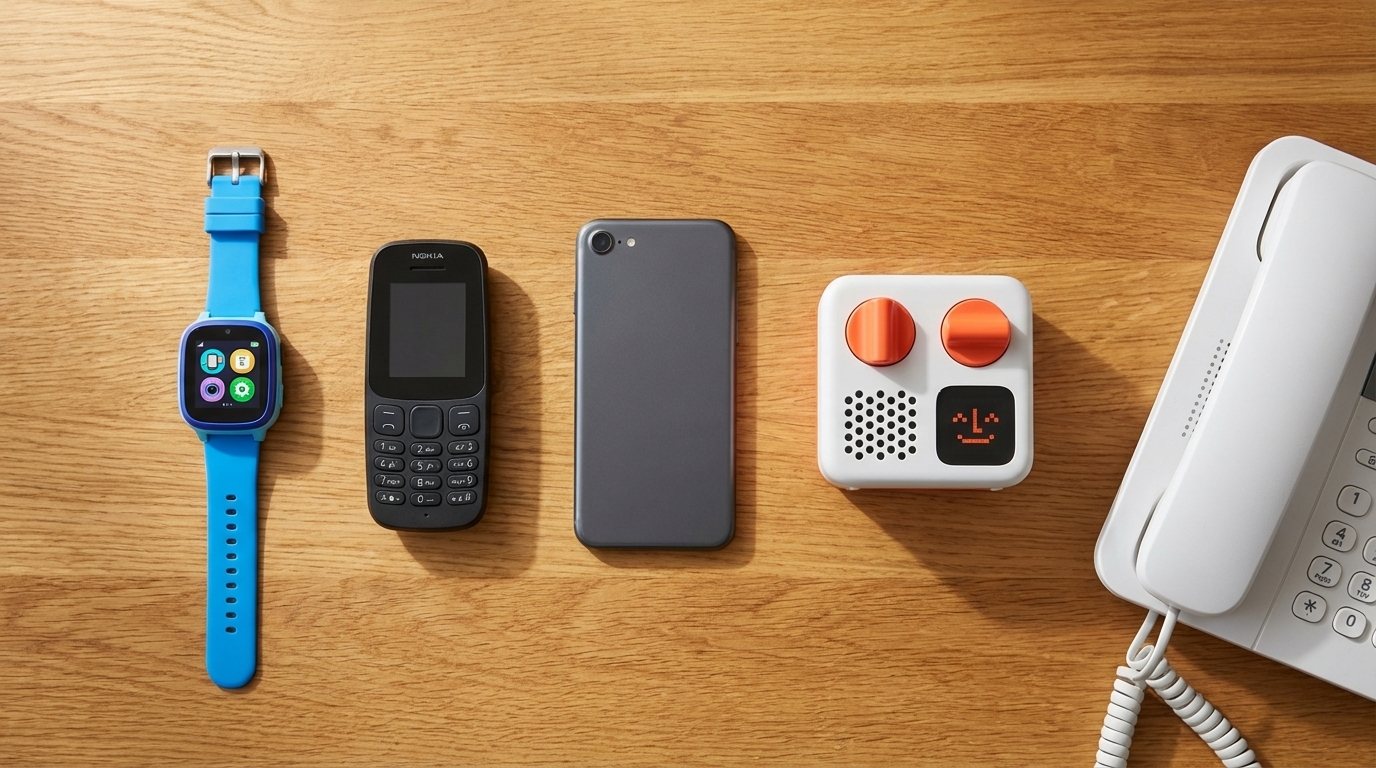
Best First Phone for Kids UK 2026: GPS Watches vs Dumb Phones vs WiFi Landlines Compared
19 Mar 2026 · 12 min read